Wednesday, August 22, 2018

Tips for Hide Message Preview on iPhone (iOS 10/11/12)


How to Hide Message Preview on iPhone (iOS 10/11/12)?

On your iPhone, you can choose to hide message previews either when it is locked or unlocked. We will show you how you can hide the previews in both cases.
Hide Message Preview on iPhone Locked Screen

Most of the time when you are working, your iPhone screen will be locked. Therefore, you may wish to hide message previews when the screen is locked. The steps below will help you do this:

Step 1: On your iPhone home, tap Settings and then click Notifications.

Step 2: Locate Messages and tap this option.

Step 3: Under Messages, scroll down to the Messages Options. Tap Show Previews. If you have been getting message previews even when the screen is locked, the "Always" option will be selected by default.


Step 4: Tap “When Unlocked”. This will display message previews only when your iPhone is not locked. If you still don’t want message previews to be displayed when your iPhone is unlocked, read on the next part.
Hide Message Preview When iPhone Is Unlocked

For your own reasons, you may prefer to hide message previews even when your screen is unlocked. The steps below should show you how to hide message preview on an unlocked screen:

Step 1: Follow Step 1 to Step 3 listed above.

Step 2: Under Show Previews, select Off. Message Previews won’t be displayed when your screen is locked and when it is unlocked.


How to Hide All Notification Preview on iPhone (iOS 10/11/12)?

Message Previews are not the only annoying notifications when you are trying to concentrate and do something useful. Below, we guide you on how to hide all notification previews on iPhone:

Step 1: Open Settings and then tap Notifications.

Step 2: At the top of the Notifications screen, tap Show Previews.

Step 3: Tap Never. This will make sure that no app will display any notifications both when your iPhone screen is locked and when it is unlocked.


For now, check:Free iTunes/iPhone Backup Extractor for iPhone, iPad

Jihosoft iTunes Backup Extractor free is a powerful tool to recover and extract important data from iPhone, iPad & iPod touch backup on Windows or Mac.

Jihosoft Android Data Recovery: the best Android Data Recovery software for Windows and Mac to recover deleted contacts, messages, photos, videos, WhatsApp and etc from Android devices.

Gihosoft Android data recovery Free is a super awesome software specialized in Android file recovery. With this program, you are able to recover deleted photos, music, videos, messages, contacts, call logs, WhatsApp messages, Viber chat history and more from Samsung, Huawei, LG, HTC, Motorola, Google, Oneplus, Sony, Lenovo, ZTE and other Android devices directly. Meanwhile, this Android data recovery software is available for both Windows and Mac platforms.

If you can’t sync with iTunes and want to rescue data from a disable iPhone, you could try Gihosoft iPhone Data Recovery. Also feel free to ask questions on the iDevice is disabled error in the comments section below.

Tips on Turn off Safe mode on Tumblr iPhone App, iPad App


How to Turn On/Turn off Safe mode on Tumblr iPhone App, iPad App

Tumblr is a Social networking and microblogging site for all Categories and Topics users.


Looking to Turn off Safe Mode on Tumblr?


Get Here How to.


Tumblr users can share and post relative informationthrough website URL or Text/Image/Video share amazingly. Let's start the epic journey with Tumblr. If you want or don't want your contentshow in 18+ result or offset keywords set but Tumblr.


Turn off safe mode that removes all the security or if you think your content should be blocked for the Sensitive material or Search, keep it turned on.


Read also: How to Tell if Someone Has Blocked You on Kik Messenger 2018
Steps for Enable/ Disable safe mode on Tumblr on iPhone, iPad

Tumblr app should installed for find related settings in iPhone settings app.

Step 1: Go to the Settings app on the iPhone/iPad or iPod.

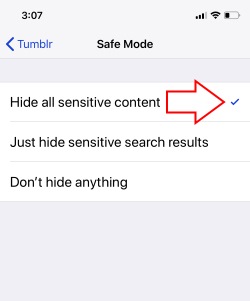
Step 2: Next, Scroll down to the bottom and Find “Tumblr.” See different Tumblr settings included “Safe Mode.”


Step 3: Tap on Safe Mode > Hide all Sensitive Content.


For Disable Safe Mode

Go the Steps below and Find “Don’t hide anything” under the Safe Mode.
Also should be changed in Tumblr Web settings

Your iPhone settings don’t overwrite or replace with the Web users. You need to improve or Enable Safe Mode manually from Tumblr account settings.

Open Tumblr on your Mac or PC browser.


Login with Tumblr Username and Password

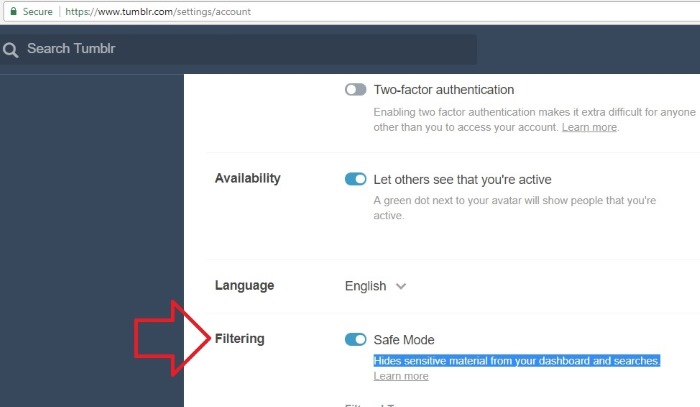
Find Filtering option: Safe Mode.

Enable this option we can “Hide Sensitive material from your dashboard and Searches.”

If this option is enabling, you will get the message like “This Tumblr may contain sensitive media. Safe mode is on”.
Wrap Up

Tumblr secure the privacy and users data. Let’s make customized it and use different account level for actual power and auto filter from spam activity and users.

If you lost important data on iPhone, you may use Gihosoft iPhone Data Recovery to directly recover from iPhone, or use the iTunes Backup Extractor to export data from iTunes backup.


Free iTunes/iPhone Backup Extractor for iPhone, iPad

Jihosoft iTunes Backup Extractor is a powerful tool to recover and extract important data from iPhone, iPad & iPod touch backup on Windows or Mac.

Sponsor Ads:

Gihosoft Android data recovery Free is a super awesome software specialized in Android file recovery. With this program, you are able to recover deleted photos, music, videos, messages, contacts, call logs, WhatsApp messages, Viber chat history and more from Samsung, Huawei, LG, HTC, Motorola, Google, Oneplus, Sony, Lenovo, ZTE and other Android devices directly. Meanwhile, this Android data recovery software is available for both Windows and Mac platforms.

Revolutionize Your Macbook’s Audio With This App [Deals Hub]

If you consume tons of media straight from your PC, it’s time to upgrade your audio. Boom 3D™ Music Player is an award-winning pro-audio enh...